This is the alternative to Link your Shopify store for stores that can’t add Apptics as a user of their Shopify account — for example when your Shopify plan has no free user seat. You create the app in Shopify yourself and add Apptics checkout to your theme by hand. Plan on about 15 minutes and admin access to your Shopify store.

Add your store in Apptics

In Apptics, click Add store, enter your your-store.myshopify.com domain, and click Continue. Leave the window at the Give Apptics access step — you’ll come back to it at the end.

Create the app in Shopify

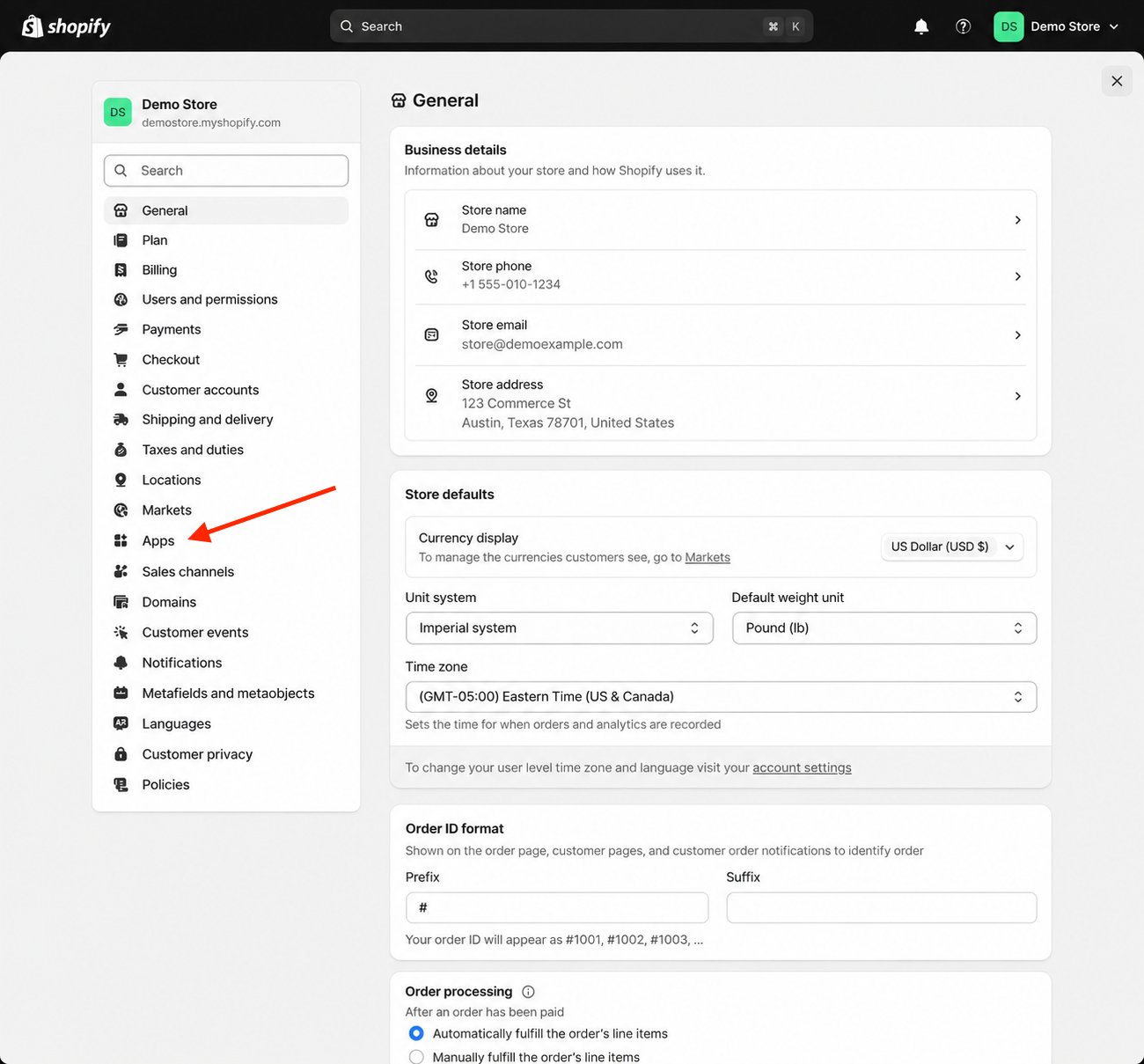
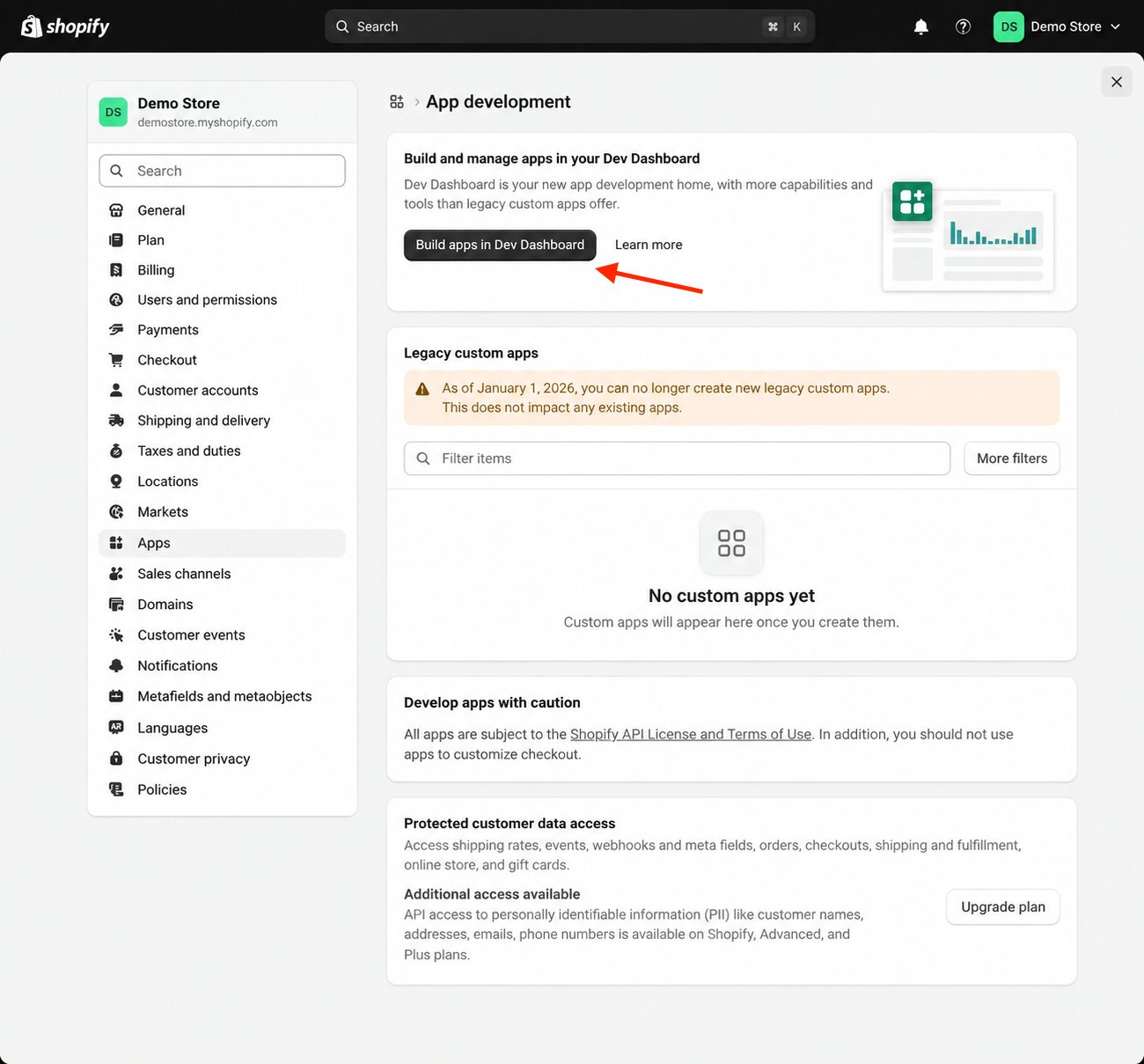
  1. In your Shopify admin, open Settings, then Apps, then Build apps in Dev Dashboard.
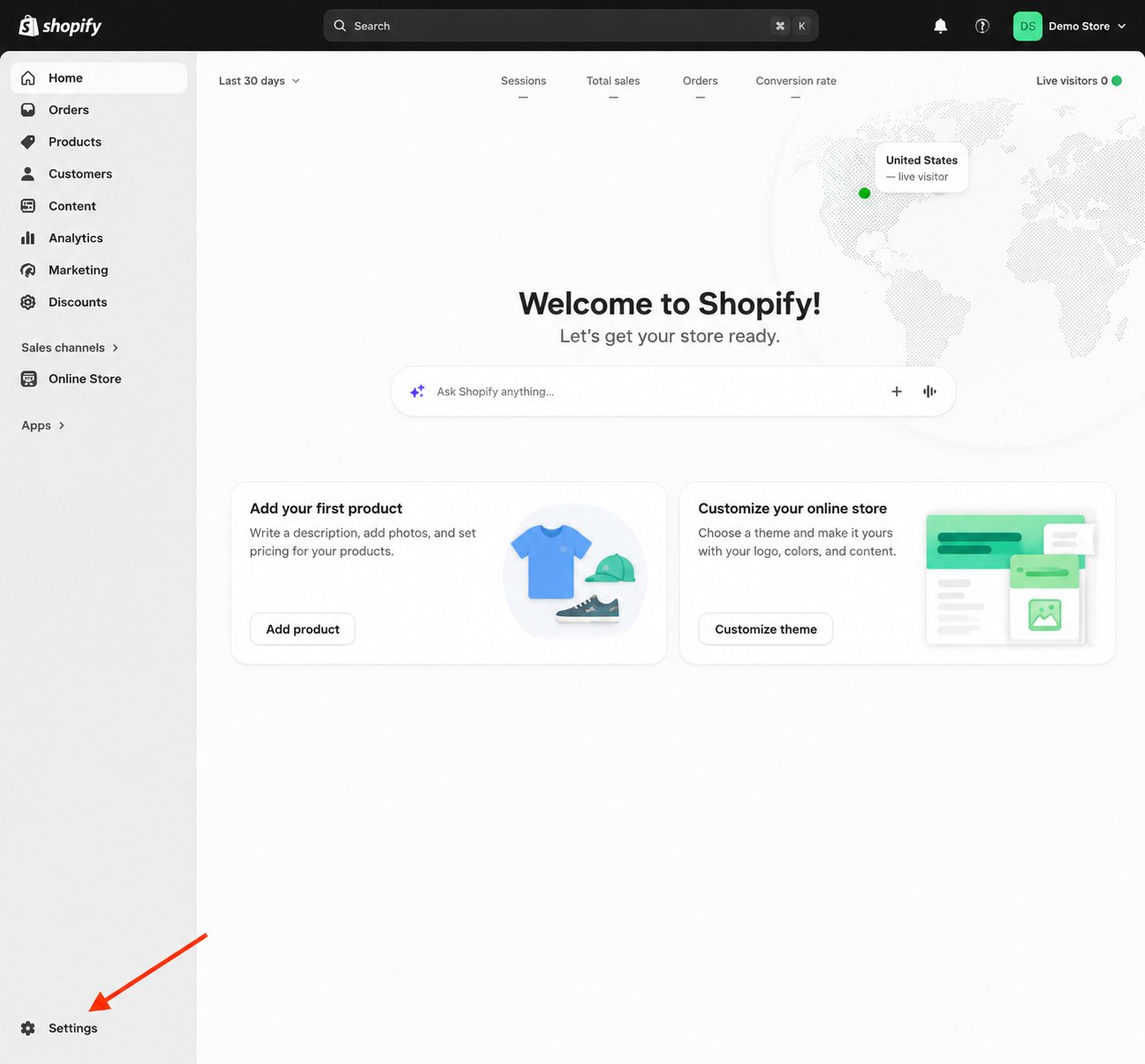
    Settings at the bottom of the Shopify admin sidebar
    Apps in Shopify settings
    Build apps in Dev Dashboard on the App development page
  2. In the dev dashboard, create a new app (name it Apptics checkout) and start a new version.
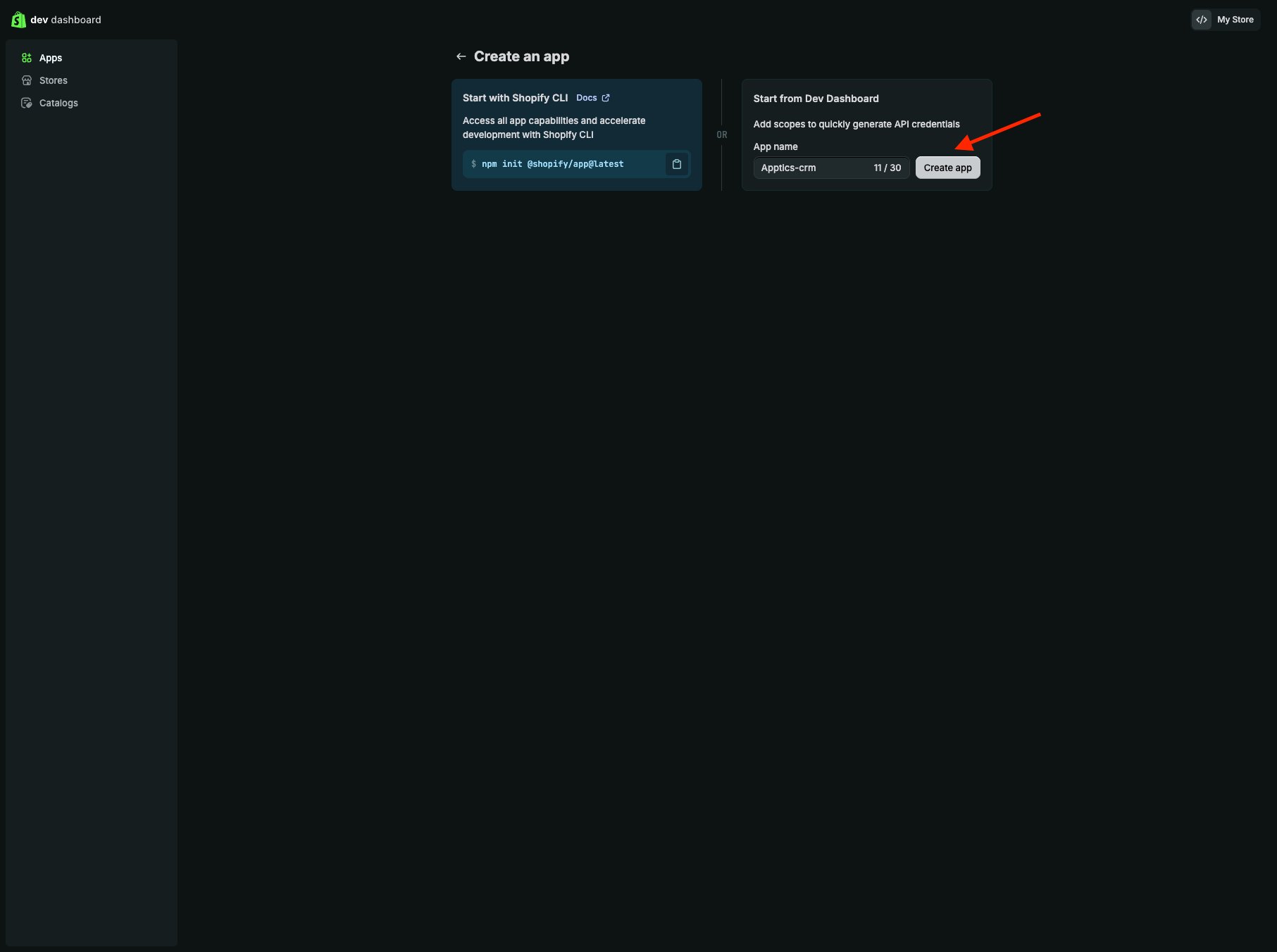
    Creating an app in the dev dashboard
  3. Set the App URL to https://app.apptics.com.
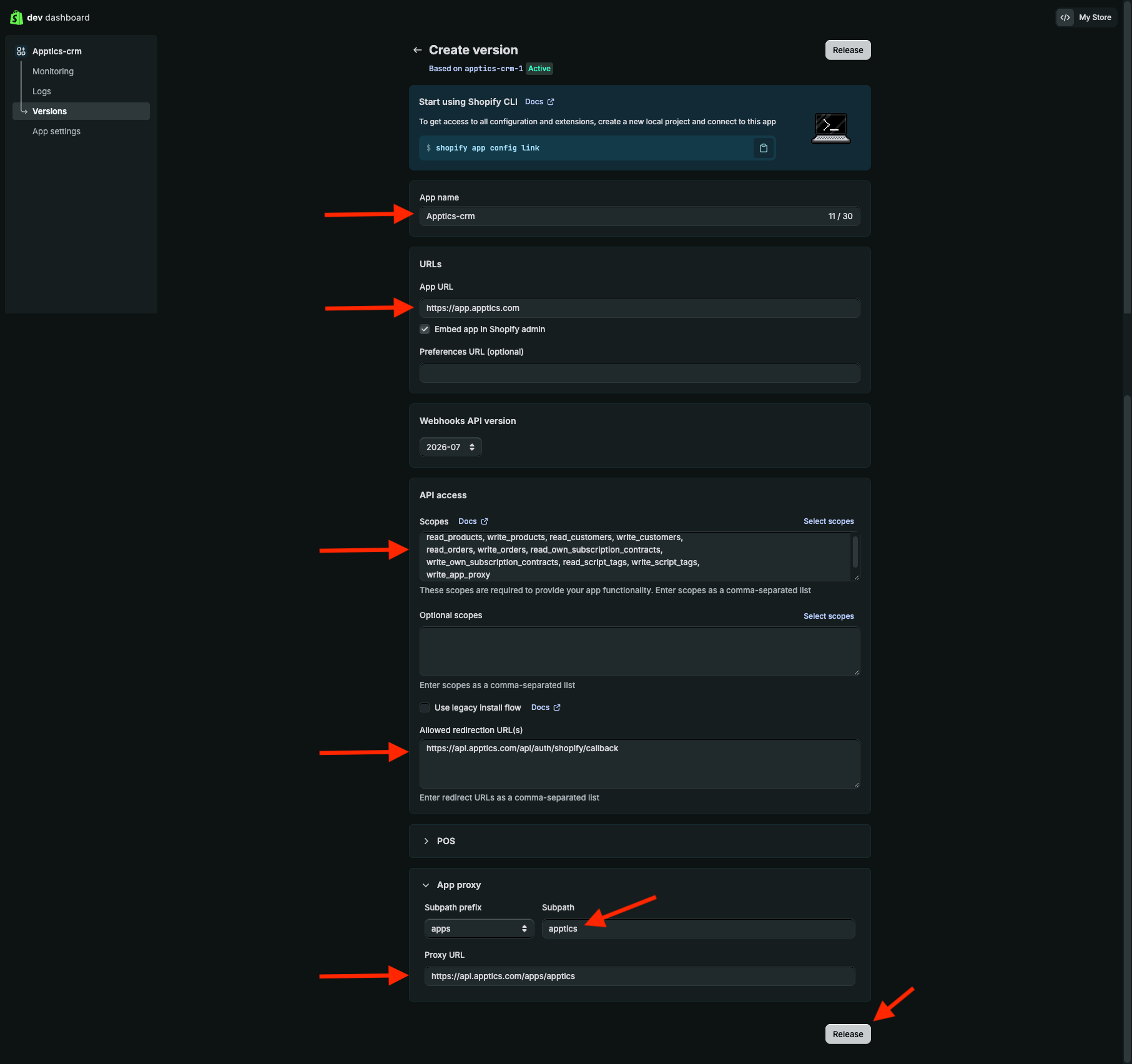
    The version form with the App URL, API access, and App proxy fields
  4. Under API access, paste the scopes:
    and add the redirect URL https://api.apptics.com/api/auth/shopify/callback.
  5. Under App proxy, set subpath prefix apps, subpath apptics, and proxy URL https://api.apptics.com/apps/apptics.
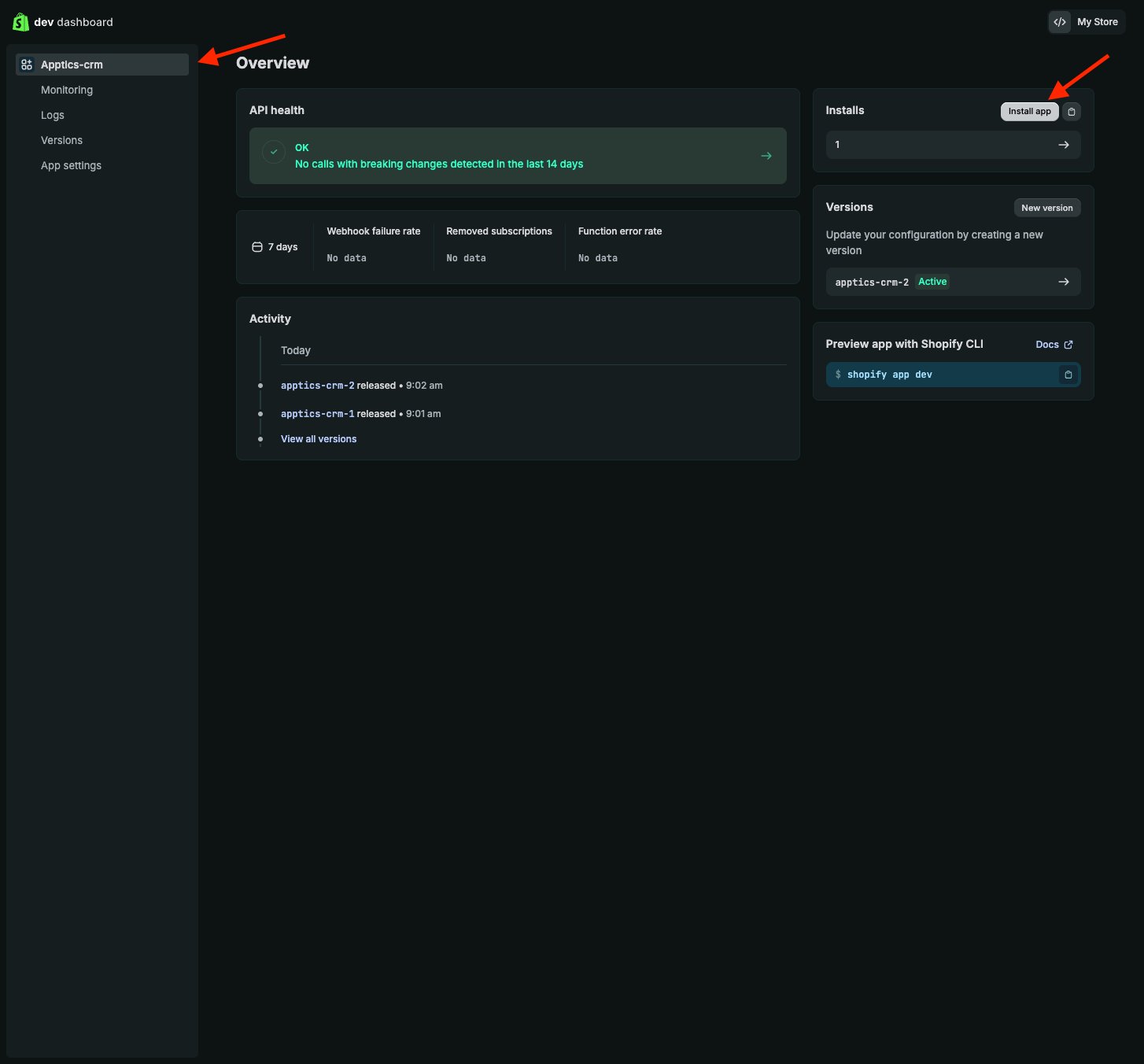
  6. Release the version, then install the app on your store.
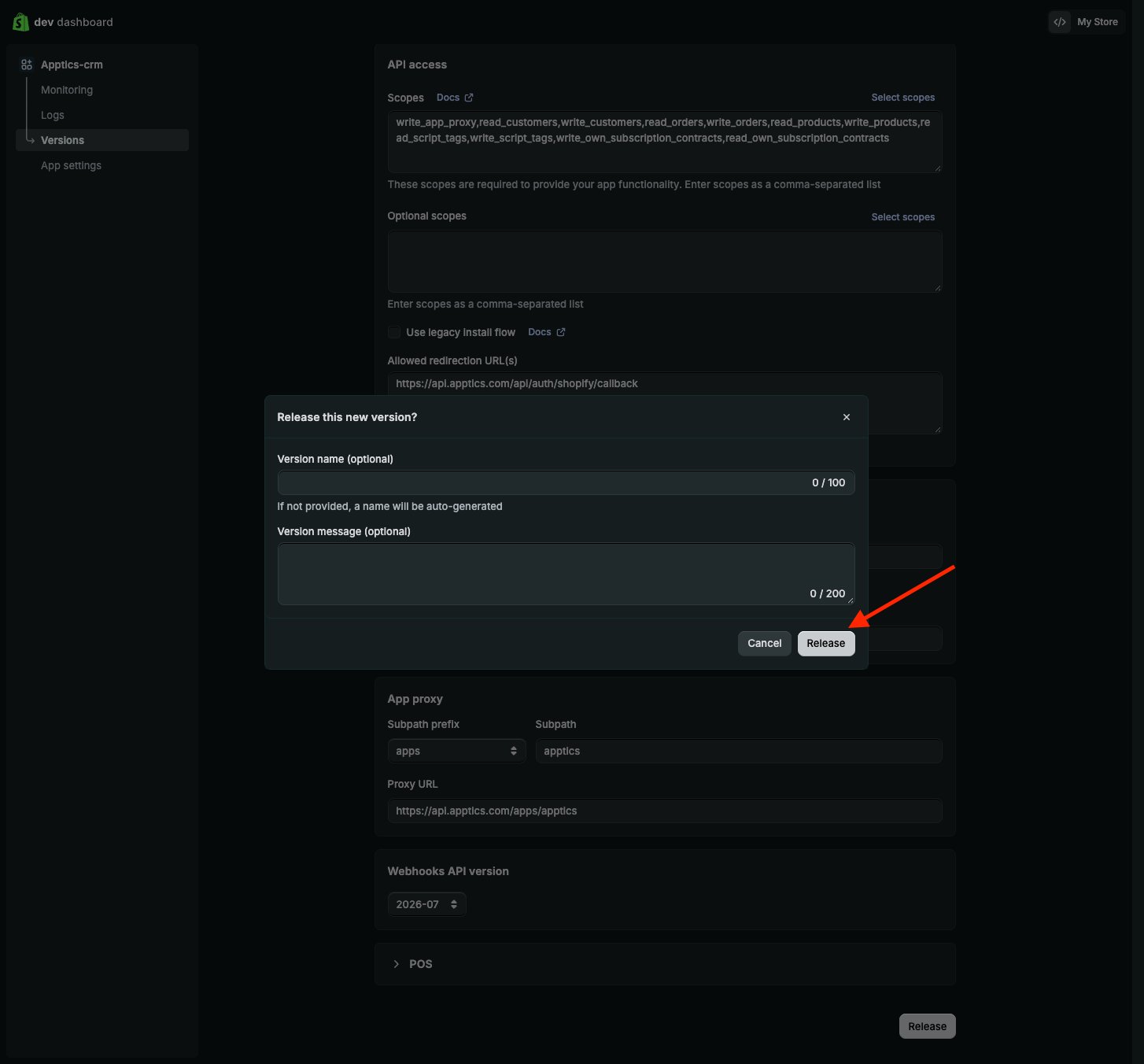
    Releasing the new version
    Install app on the app's Overview page

Send the app’s keys to Apptics

Copy the app’s Client ID and Client Secret from its settings and send them to the email address shown in the Give Apptics access step of the Apptics window, together with your store domain.
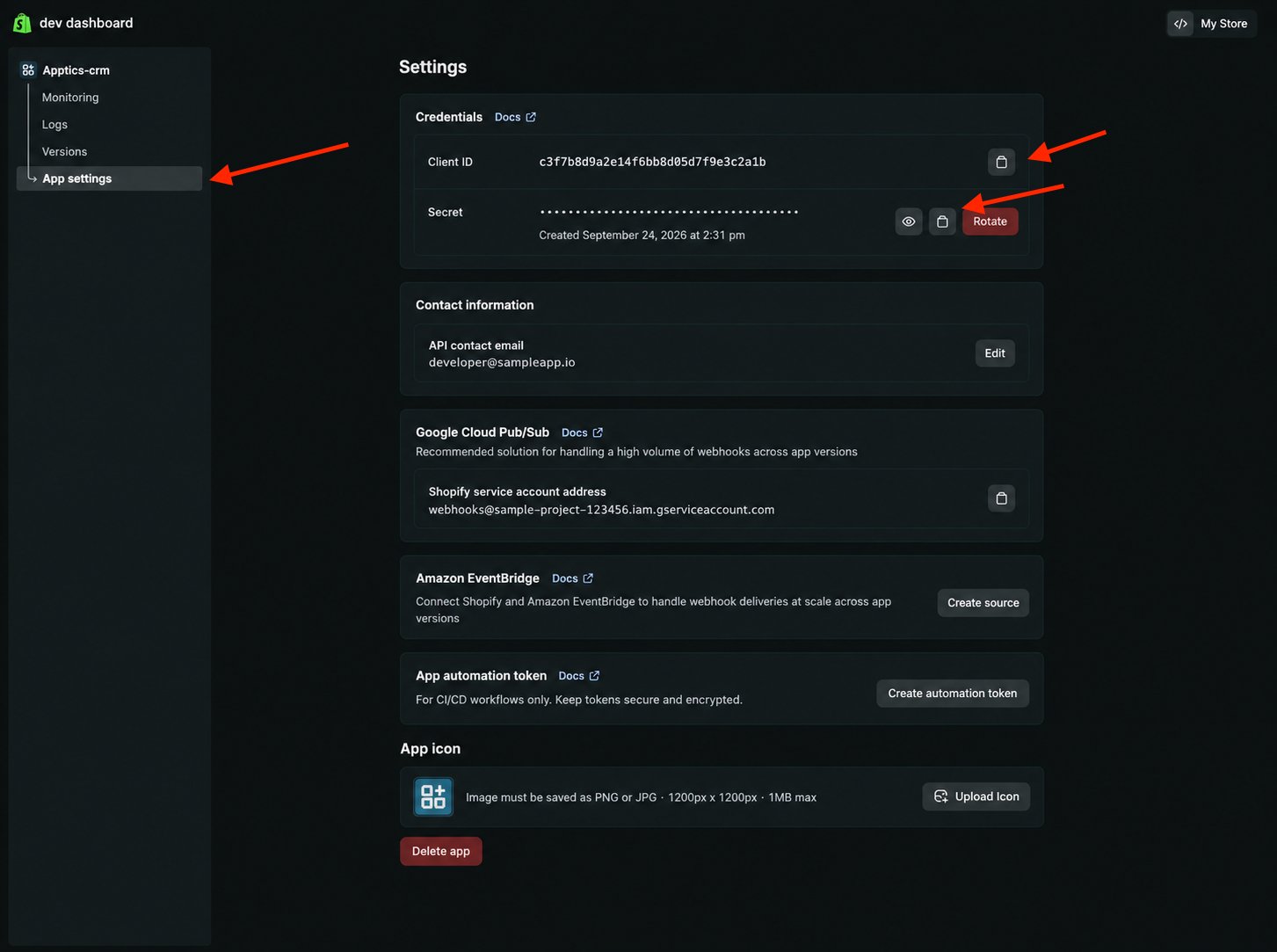
Client ID and Secret under App settings in the dev dashboard
Once Apptics has added them, the store connects on its own within a few minutes, because the app is already installed. If the setup guide on your dashboard still shows Install for the store, click it. Your products, customers, and orders then start syncing.

Add Apptics checkout to your theme by hand

An app you created yourself can’t be switched on from the theme editor, so add Apptics checkout to your theme directly:
  1. In your Shopify admin, open Online Store › Themes, and on your live theme choose Edit code.
  2. Open layout/theme.liquid and paste this line just before </head>:
  3. Save the file.
Checkout clicks on your storefront now reach Apptics. In Settings › Checkout, the Storefront connection card keeps saying Not turned on, but once a shopper has visited it shows when Apptics checkout was last seen on your storefront — that’s the confirmation to look for. Repeat the paste whenever you publish a new theme.